
A client who books a week or more is worth rewarding. Set your extended stay discounts once, such as 5% off stays of 7 nights or more, and PawsAdmin takes the discount off the boarding charge on every long stay. It counts the nights for you, picks the right discount and puts it on its own line, so the client can see exactly what they saved.
Nothing changes until you add your first discount. Without one, boarding invoices work exactly as they do today.
1. Add your discounts
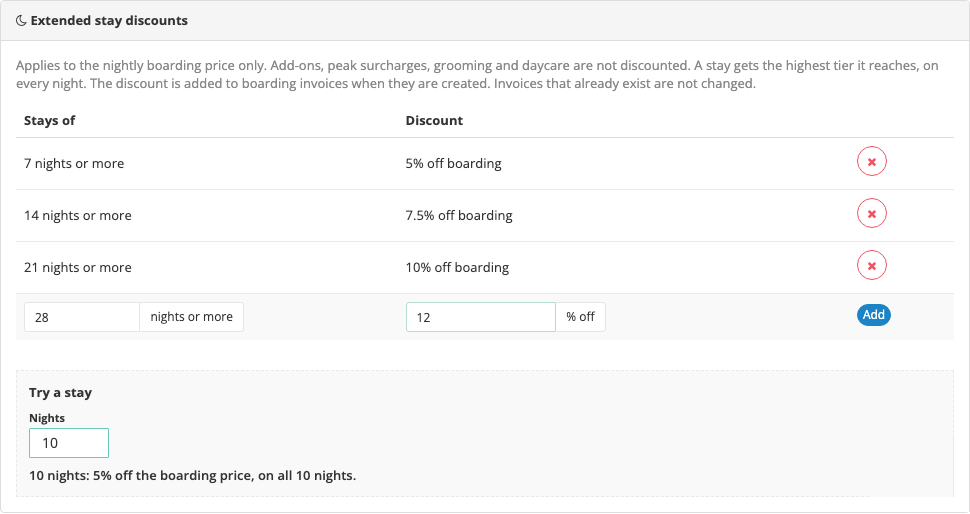
Go to Admin, then Pricing: Services, and open your Boarding prices: open boarding prices. Scroll to the Extended stay discounts panel, just under Peak dates.
Fill in the empty row at the bottom of the table:
- Stays of ... nights or more: the shortest stay that gets this discount, for example 7.
- % off: the discount for those stays, for example 5. Decimals like 7.5 work too.
Press Add. Add one row for each level of discount. A common setup is:
- 7 nights or more: 5% off
- 14 nights or more: 7.5% off
- 21 nights or more: 10% off
2. Try a stay
Under the table, type a number of nights into Try a stay to see which discount that stay gets. With the setup above, 10 nights shows 5% off the boarding price, on all 10 nights, 15 nights shows 7.5%, and 3 nights shows no discount.
A stay gets the biggest discount it reaches, and that discount applies to every night of the stay. A 15-night stay gets 7.5% off all 15 nights, not 5% on some nights and 7.5% on others.
3. What your clients see on the invoice
When you create an invoice from a boarding stay that qualifies, each pet gets a discount line under its boarding line. For example, a 10-night stay at $40 a night:
- Boarding, 10 nights: $400
- Extended stay discount (7+ nights, 5%): -$20
- Meals, add-ons and other extras: full price
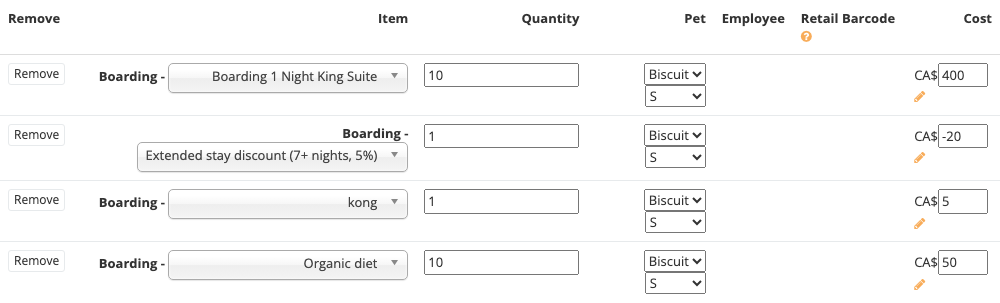
The discount is worked out from the boarding charge only. Meals, add-ons, peak date surcharges, grooming and daycare on the same invoice stay at their regular price. Tax is worked out on the discounted amount.
The discount is an ordinary invoice line. You can change the amount or remove it, just like any other item, and PawsAdmin won't change it back. You can still give an extra discount on the whole invoice with the Discount box in the totals.
4. When a stay is extended
When you move a boarding pet's leaving date later, PawsAdmin adds the extra boarding nights and checks the discount again for the whole new stay. If the longer stay now reaches a discount, or a bigger one, it adds a discount line that covers all the nights, including the ones already on the invoice.
For example, a 5-night stay has no discount. Extend it to 8 nights, and the invoice gets a 3-night boarding line plus a discount of 5% on all 8 nights.
If you shorten a stay or a pet goes home early, the discount isn't changed for you. Adjust it by hand, the same as the boarding line.
5. What clients see when they book online
When a client picks boarding dates in the client portal, a note under the dates tells them about the discount before they book. If a slightly longer stay would get a bigger discount, the note says so:
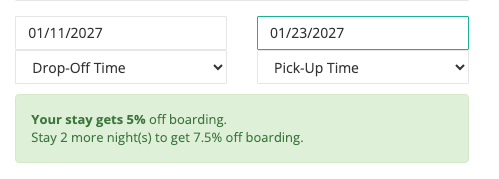
The "stay longer" suggestion only appears when the next discount is 1 to 3 nights away. The note updates as the client changes the dates, and goes away for stays that don't qualify.
The note only shows if your client portal shows prices. To turn that on, open Configure Online Booking and tick Show Estimate (when available). If you keep prices hidden online, clients see the discount on their invoice instead.
6. Remove a discount
Click the red x next to the discount and confirm. New invoices stop getting it straight away. Invoices that already have it keep it.
Discounts can't be edited. To change one, remove it and add it again with the new numbers.
Good to know
- Nights, not days. Nights are counted the same way as your boarding nights: the check-in night counts and the checkout day doesn't. Check-in Monday and checkout the following Monday is 7 nights.
- One stay at a time. The nights of one booking are counted. Two separate bookings back to back are not added together.
- Per pet. Each pet in the stay gets its own discount line, based on its own boarding charge.
- Multi-pet family pricing. If a pet's boarding price changes because a brother or sister joins the stay, its discount line is updated to match.
- Only new invoices. Discounts are added when an invoice is created. Invoices that already exist, including paid deposits, are not changed. If you add a discount after an invoice was made, add it to that invoice by hand.
- Stays that were partly paid. When the rest of a partly paid stay is invoiced, the discount is checked for the whole stay, and only what hasn't been given yet is added.
- All boarding stays. Discounts apply to every kennel and suite. They don't apply to daycare, grooming or other services.
Pro tip
Tell clients about your discounts where they plan their trips: on your website, in your booking confirmations and when they call. A client booking 6 nights will often add a seventh for 5% off, which fills your kennels for longer and saves them money.
See also: Charge More for Boarding Over the Holidays using Peak Pricing and How to Set Up Multi-Pet Family Pricing for Boarding.
Need help or have questions? Contact our support team at support@pawsadmin.com. We're always here to help you fetch success!