
Christmas, March Break, long weekends: your busiest nights are worth more, and you shouldn't have to count them by hand. Add your peak dates once and PawsAdmin adds a holiday surcharge to every boarding invoice that touches them. It works out how many peak nights each pet stays and puts the charge on its own line, so the client can see exactly what it's for.
Nothing changes until you add your first peak dates. Without them, boarding invoices work exactly as they do today.
1. Add your peak dates
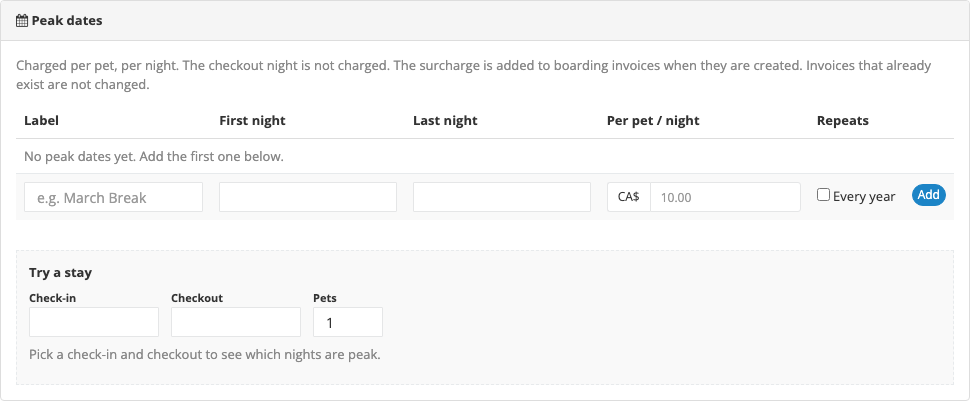
Go to Admin, then Pricing: Services, and open your Boarding prices: open boarding prices. Scroll to the Peak dates panel at the bottom of the page.
Fill in the empty row at the bottom of the table:
- Label: a short name your clients will see on their invoice, such as Christmas or March Break.
- First night and Last night: the first and last nights you want to charge extra for. Both are included.
- Per pet / night: the extra amount for each pet, for each peak night.
- Every year: tick this for holidays that fall on the same dates every year, like Christmas or Canada Day. Leave it unticked for one-off dates.
Press Add. Your peak dates appear in the table, in calendar order. Add as many as you like.
Holidays that move, like Easter or US Thanksgiving, change dates every year. Add them as one-off dates (leave Every year unticked) and add next year's dates when you know them.
Dates that cross New Year, such as December 30 to January 2, need Every year ticked. Without it, PawsAdmin reads January 2 as coming before December 30 and asks you to fix the dates.
2. Try a stay before the holidays arrive
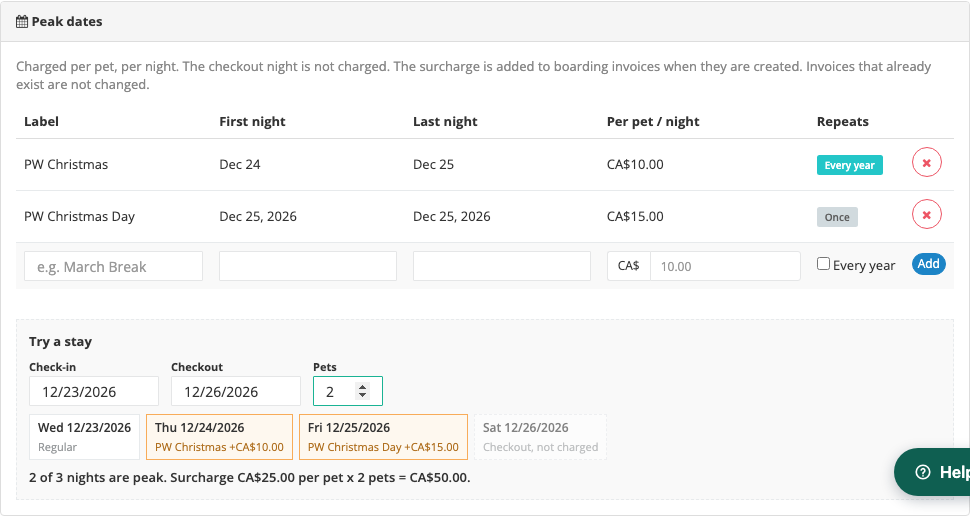
Under the table, the Try a stay box lets you check the counting before a real client books. Pick a check-in date, a checkout date and the number of pets.
Each night of the stay is listed. Peak nights are highlighted with the name of the peak dates and the extra amount, and the checkout day is shown as not charged. The total underneath shows the surcharge per pet and for all the pets together.
For example, with Christmas set for December 24 to 25 at $10, a stay from December 23 to December 26 shows:
- Dec 23: regular night
- Dec 24: Christmas, +$10
- Dec 25: Christmas, +$10
- Dec 26: checkout, not charged
That's 2 peak nights, so $20 per pet, or $40 for two dogs.
3. What your clients see on the invoice
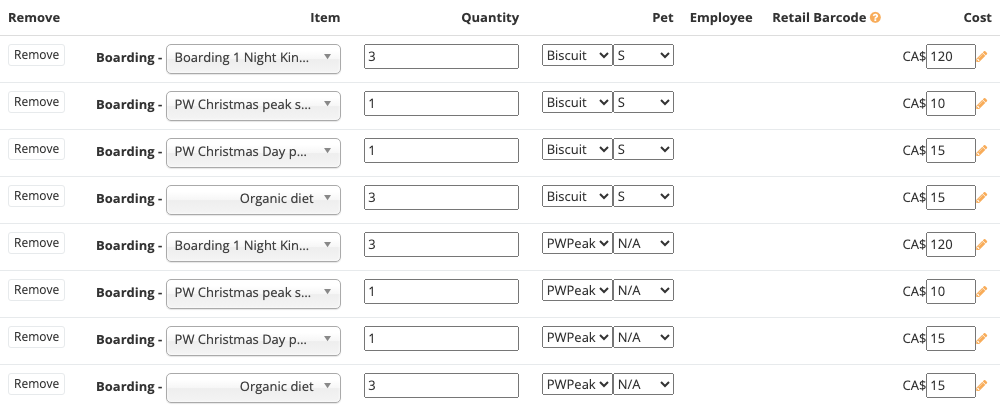
When you create an invoice from a boarding stay, each pet gets a surcharge line right under its boarding line. Using the example above for two dogs, Bella and Max:
- Bella: Boarding, 3 nights
- Bella: Christmas peak surcharge, 2 x $10
- Max: Boarding, 3 nights
- Max: Christmas peak surcharge, 2 x $10
The surcharge is an ordinary invoice line. You can change the quantity, give a discount or remove the line, just like any other item. PawsAdmin never changes it back. Tax is charged on it the same way as your other services.
4. What clients see when they book online
When a client picks boarding dates in the client portal that include your peak dates, a note appears under the dates before they book:
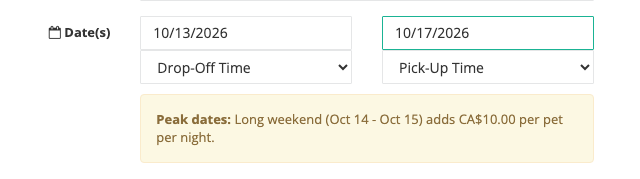
The note names the peak dates, the nights of the stay they cover, and the extra amount per pet per night. It updates as the client changes the dates, and goes away if the stay doesn't touch any peak dates.
The note only shows if your client portal shows prices. To turn that on, open Configure Online Booking and tick Show Estimate (when available). If you keep prices hidden online, the note stays hidden too, and clients see the surcharge on their invoice.
5. Remove peak dates
Click the red x next to the peak dates and confirm. New invoices stop getting that surcharge straight away. Invoices that already have it keep it.
Peak dates can't be edited. To change the amount or the dates, remove them and add them again.
Good to know
- Nights, not days. A night counts when the pet sleeps at your facility. The check-in night is charged and the checkout day isn't, the same way your boarding nights are counted.
- Per pet. Every pet in the stay gets its own surcharge line, so two dogs pay the surcharge twice.
- Overlapping peak dates charge once. If a night falls in two peak dates, for example Christmas week at $10 and Christmas Day at $15, it's charged once at the higher amount. The invoice line shows the name of the one that was charged.
- Only new invoices. Peak dates are added when an invoice is created. Invoices that already exist, including paid deposits, are not changed. If you add peak dates after an invoice was made, add the surcharge to that invoice by hand.
- Extended stays. When you move a boarding pet's leaving date later, PawsAdmin adds a new surcharge line for the extra peak nights only. The surcharge lines already on the invoice stay as they are, so no night is charged twice. If you shorten a stay, adjust the surcharge by hand, the same as the boarding line.
- Stays that were partly paid. When the rest of a partly paid stay is invoiced, only the unpaid nights are checked for peak dates, so nobody pays the surcharge twice.
- All boarding stays. Peak dates apply to every kennel and suite. They don't apply to daycare, grooming or other services.
Pro tip
Sit down once with your calendar and add the whole year's holidays in one go. Then use Try a stay for your busiest week to make sure the totals match what you've told clients. Put your holiday rates on your website and in your booking confirmations too, so nobody is surprised at pick-up.
See also: How to Set Up Boarding Prices in PawsAdmin, and Setting Up Pet Boarding Deposits in PawsAdmin.
Need help or have questions? Contact our support team at support@pawsadmin.com. We're always here to help you fetch success!