
Some daycares charge for the time a dog actually spends with them, not by the day. With hourly daycare, your daycare packages hold hours instead of days, and every visit uses the hours between check-in and check-out. A 50-hour package covers 50 hours of play, whether that's five long days or ten short ones.
Check-in and check-out work the way they do today. PawsAdmin works out the hours from the clock, and your team can change them before the client pays.
Before you start
- Ask us to turn it on. Hourly daycare is switched on for each business by our support team. Email support@pawsadmin.com and we'll set it up with you.
- Turn off half-day daycare. With hourly daycare, a short visit already costs less, so half days aren't needed. The setting below stays greyed out until half day is off.
- Packages with an expiry date aren't supported. Hourly packages don't expire. If you sell daycare packages that expire, talk to us first.
1. Switch daycare to per hour
Go to Admin, then Services: open your services. Under Daycare, set Charge daycare to Per hour and press Update Service.
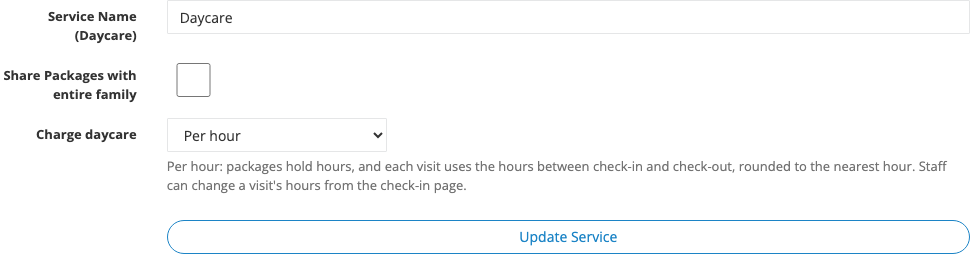
If you've already sold daycare packages, PawsAdmin tells you how many before it saves. Those packages count as days today. After the switch, each one counts as that many hours, so a 10-day package becomes 10 hours. Check your clients' balances in Manage Package afterwards, and adjust any that should be in hours.
2. Set up your prices in hours
Open your daycare prices: open service pricing. A note at the top confirms daycare is charged per hour.

You need two kinds of prices:
- An hourly price, for example Day Care - Per Hour at $3.00. Make it a package of 1 and tick Default. This is what a visit is charged at when the client has no hours left.
- Hour packages, for example Day Care 50 Hours at $140.00. The package size is the number of hours: 50 for a 50-hour package, 100 for a 100-hour one.
Your price list then shows each package in hours, for example Day Care 50 Hours (50 hours).
3. Check in and check out as usual
On the Check-in page, nothing changes about how you check pets in and out. A few things now read in hours:
- A pet's balance shows as 43 hours remaining, or Owes for 9 hours when they've run out.
- When you press Check Out, PawsAdmin counts the time from check-in to check-out and rounds it to the nearest hour. A dog here from 7:12 AM to 3:48 PM (8 hours 36 minutes) uses 9 hours. A visit always uses at least 1 hour.
- Once a pet has left, their row shows the time they left and the hours used, like 9 h.
4. Change a visit's hours
Forgot to check a dog out on time, or want to give a client a break? Click the hours on the pet's row, for example 9 h. A small window opens:
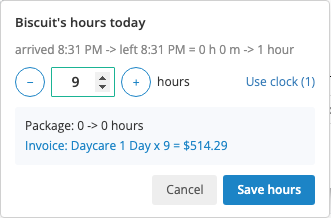
- The top line shows how the clock hours were worked out: when the pet arrived, when they left, and the hours that makes.
- Use - and +, or type a number. Use clock puts back the hours from the clock.
- Underneath, you see what the change does before you save: how many hours stay on the client's package, and what goes on the invoice. (The price in the picture is from our demo business.)
Press Save hours. The package and the invoice update straight away.
5. What goes on the invoice
The client is only charged for the hours their package doesn't cover. They appear on one invoice line at your hourly price. With an hourly price of $3.00 and a 9-hour visit:
- No hours left: Day Care - Per Hour x 9, so $27.00.
- 3 hours left on their package: the package covers 3, and the invoice shows x 6, so $18.00.
- 50 hours left: nothing on the invoice. The package now has 41 hours left.
When the invoice is paid, the hours paid for are added to the client's balance and used by the visit, so the balance ends at zero.
6. If the invoice is already paid
PawsAdmin never changes an invoice that's been paid. If you lower a visit's hours after the client paid, the extra hours they paid for stay on their package for next time, and PawsAdmin tells you so:
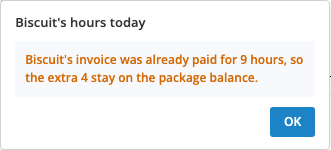
If you raise the hours instead, the extra hours go on a new invoice.
Good to know
- Pets that were never checked out use 1 hour. Change their hours from the check-in page the same day, or correct the balance in Manage Package.
- Removing a check-in puts all of that visit's hours back on the client's balance.
- Family packages work too. If you share packages across a family, every dog's hours come out of the same balance.
- Unlimited memberships aren't affected: members don't use hours.
- Late fees: with hourly daycare, a late pick-up already costs the extra hours, so you may want to turn your daycare late fee off.
- Going back to daily pricing is the same setting, set to Per day. Balances then count as days again, so check them in Manage Package.
Pro tip
Before your first busy morning, check one dog in and out yourself and open the hours window. Seeing the package and invoice lines once makes it easy to explain hourly packages to clients at the front desk.
See also: Setting Up Daycare Prices and Packages in PawsAdmin, and How to Enable Package Sharing for All Pets in a Family.
Need help or have questions? Contact our support team at support@pawsadmin.com. We're always here to help you fetch success!