
Swim/therapy Schedule
Type 1: Default Setup
Schedule Example: Duration not enabled.
Oliver sets a long term schedule based on days of the week. Based on the actual bookings, she might remove or add a time slot on a particular day. Olivia also adds notes to her time slots such as Small dog only/Laser only, or short day today since she is not the only person doing the booking. The 2nd therapist, Andy, has his own schedule.
Action: No action! this is the default configuration. You can set up a long term schedule for each day of the week for each staff, and tweak it in daily booking view or team member account view. To take days off, just go to Admin > Days off.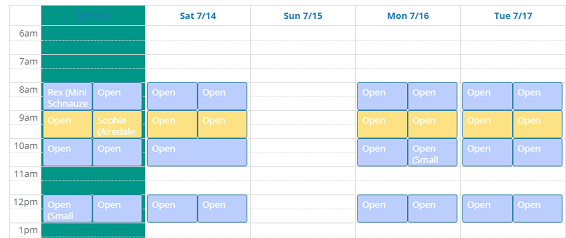
Type 2: Simply book on the go
Schedule Example: Duration enabled
Action: Send us a quick message and we will enable appointment end time.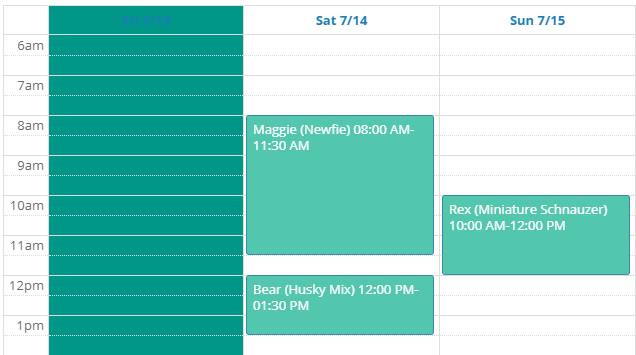
Type 3: Stacked Appointments
Schedule Example: Olivia has a spot open every 30 min from 8am-5pm Monday to Friday, and every 30 min from 9am-5pm on Saturday. When she books an appointment, she sets the appointment duration and buffer time, so overlapping vacant spots are removed.
Action: Send us a quick message and we will enable this option.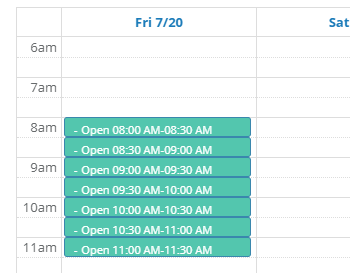
If your schedule is different or a mix of the options above, contact us to enable different settings.
Additional Scheduling/Booking Options
1: Choose Service Type at Booking
You can set up service types in online booking > advanced settings > notes.
To preview the online booking experience, go to online booking > how to book > preview.
If you prefer offering separate services with their own calendars, please email support@pawsadmin to add them.
2. Choose add-on at booking
Action: Go to admin > price > add service and select add on checkbox. Once added, you will find it during booking.
3. Add restriction to booking
Size Restriction Example: Olivia works with xs-giant breeds for her morning appointments, but only xs-m breeds for the last noon appointments. You can simply add notes for each note slot, or you can set up a list of sizes to choose from.
4. Color Code
Example: Olivia would like her appointments to show up as green, and Andy prefers red.
Action: Go to the daily calendar and scroll down to the bottom. Click on the default red dot beside a team member's name in the booking list, and select a preferred color from the color palette. Once updated, you will see it reflected in weekly and daily calendars.
Price Setup
Update in admin > services
Single service
Packages
Unlimited monthly
Add-on prices set at check out or preconfigured
Action: When you set up add-ons in admin > price, you can preset the price, or leave it be to set at checkout.
If your prices are set up differently, please contact us to enable different settings.